Keyboard shortcuts for WINDOWS-AHK
Keyboard shortcuts for WINDOWS-AHK
|
This document lists keyboard shortcuts for arlbibek/windows-ahk, a simple and intuitive AutoHotKey script to enhance your Windows workflow. For setup instructions, refer to the README.md on GitHub. Made with ❤️ by Bibek Aryal. |
Tray menu options
Right-click the windows-ahk tray icon to access the following options:
| Option | Action | Hotkey |
|---|---|---|
| Run at startup | Enable or disable script to run automatically at login | |
| Start menu shortcut | Show or hide the script from the Start menu | |
| Presentation mode | Toggle Windows Presentation Mode on/off | Win + Shift + P |
| Keyboard shortcuts | View keyboard shortcuts, opens (this) shortcut documentation as a PDF | Ctrl + Shift + Alt + \\ |
| Manage function keys | Configure what each function key (F1 - F2) should do when pressed | Alt + F1 |
| Open file location | Opens the script directory | |
| Preferences | Edit, Open, Restore & Launch configuration file/window | |
| Windows Utilities | Launch Microsoft Activation Scripts Launch Chris Titus Tech Windows Utility These tools are provided as-is for convenience. We do not accept any liability for how these scripts are used or their outcomes. |
|
| View in GitHub | View source code in GitHub repository | |
| AutoHotKey documentation | Opens the official AutoHotKey v2 documentation | |
| Suspend hotkeys | Disables (suspends) hotkeys and hotstrings, while the script itself keeps running in the background | Ctrl + Shift + Alt + S |
| Reload script | Reloads the script (use after changes) | Ctrl + Shift + Alt + R |
| Exit | Exits the script | Ctrl + Shift + Alt + E |
Hotkeys
Also known as shortcut keys - easily trigger an action (such as launching a program or keyboard macro).
Function keys actions
Note: You can customize these actions by launching the manage function keys windows (Alt + F1).
Or by manually editing the configuration file at
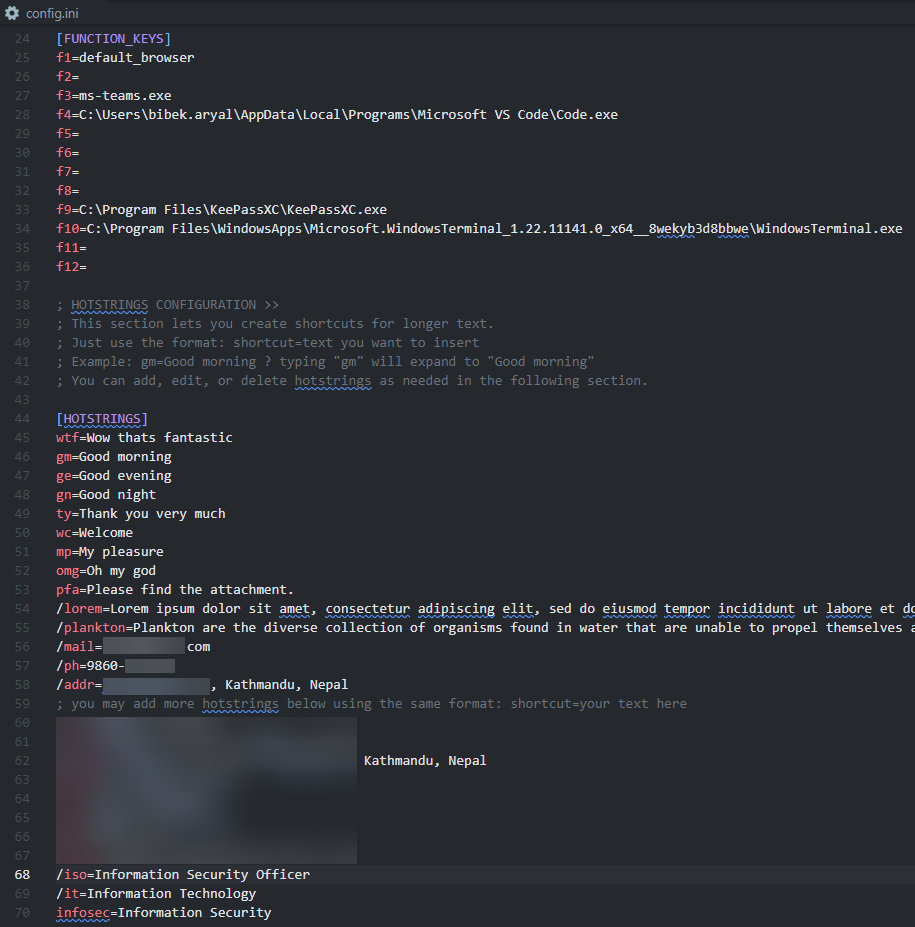
%appdata%/windows-ahk/config.ini, under the[FUNCTION_KEYS]section. To do so, right-click the tray icon → Launch configuration window, Click Open configuration file, then edit as needed, Save changes and reload the script
| Function Key | Value | Action |
|---|---|---|
| F1 | default_browser |
Launch or switch to the default browser |
| F2 | (Unassigned — customize as needed) | |
| F3 | switch_tabs |
Switch between two most recent active windows |
| F4 | notepad.exe |
Launch or cycle through Notepad windows |
| F5 … F9 | (Unassigned — customize as needed) | |
| F10 | C:\Windows\System32\WindowsPowerShell\v1.0\powershell.exe |
Launch or switch to PowerShell window(s) |
| F11 … F12 | (Unassigned — customize as needed) |
🔧 You can use either one of the available options below or an app path - must be a full path or accessible via the system PATH.
Available options
Option Description default_browserLaunch the default browser or cycle through its windows all_browsersLaunch default browser of cycle through all active browser windows
(includes: firefox, duckduckgo, chrome, arc, brave, msedge, opera, iexplore, zen)browser_tabsLaunch the default browser or cycle through active browser tabs switch_windowSwitch between two most recent active windows (sends Alt + Tab) switch_tabsSwitch between two most recent active tab in a active window (sends Ctrl + Tab) 🔍 See screenshot of example configuration here.
Global hotkeys
| Hotkey | Action |
|---|---|
| Win + E | Open or switch to File Explorer (Use Shift to open new window) |
| Win + N | Open or switch to Notepad (Use Shift for new window) |
| Win + S | Search selected text using the active or default browser |
| CapsLock + 7 | Transform selected text to lower case (e.g., Hello, Word! to hello, word!) |
| CapsLock + 8 | Transform selected text to title case (e.g., hello, word! to Hello, Word!) |
| CapsLock + 9 | Transform selected text to upper case (e.g., Hello, Word! to HELLO, WORD!) |
| Esc ×3 | Press Esc three times to close the active window (if the active window is a browser close the active tab) |
File explorer hotkeys
| Hotkey | Action |
|---|---|
| Ctrl + Shift + U | Go to User folder 👤 |
| Ctrl + Shift + E | Go to This PC 💻 |
| Ctrl + Shift + H | Go to Desktop 🏠 |
| Ctrl + Shift + D | Go to Documents 📄 |
| Ctrl + Shift + J | Go to Downloads 📥 |
| Ctrl + Shift + M | Go to Music 🎵 |
| Ctrl + Shift + P | Go to Pictures 🖼 |
| Ctrl + Shift + V | Go to Videos 📼 |
| Ctrl + Shift + T | Open PowerShell in current directory |
| Ctrl + Shift + \\ | Open current directory in VS Code |
Hotstring
Hotstrings are mainly used to expand abbreviations as you type them (auto-replace), they can also be used to launch any scripted action.
; for example
::wtf::Wow that's fantastic
| Abbreviation | Expands To |
|---|---|
/paste |
(Pastes clipboard content) |
/datetime or /dt |
Tuesday, May 13, 2025, 17:38 |
/date |
May 13, 2025 |
/time |
17:38 |
/dear |
(Time-based email greeting with polite template) |
Customizable hotstrings
Note: You can edit or add custom Hotstrings under the
[HOTSTRINGS]section in the config file, using the format:shortcut=your text hereTo do so, right-click tray icon → Launch configuration window, Click Edit configuration file, Save and reload the script
| Abbreviation | Phrase |
|---|---|
wtf |
Wow that’s fantastic |
gm |
Good morning |
ge |
Good evening |
gn |
Good night |
ty |
Thank you very much |
wc |
Welcome |
mp |
My pleasure |
omg |
Oh my god |
pfa |
Please find the attachment. |
/lorem |
(Lorem Ipsum text) |
/plankton |
(Plankton description) |
/mail |
you@example.com (update your email here) |
/ph |
98XXXXXXXX (update your phone number here) |
/addr |
Kathmandu, Nepal (update your address here) |
💡To restore default configuration, right-click the tray icon → Launch configuration window → Restore default configuration
Made with ❤️ by Bibek Aryal.